
A keyword auto-reply on Threads answers every reply to your posts that contains a word you pick, such as MENU or price, with a public reply from your profile. In VivaDialog you set it up as an automation with a keyword trigger and a reply text, test it with a sample comment, and switch it on. Threads has no API for direct messages, so the answer is always public, and it can take up to 5 minutes to appear because VivaDialog checks Threads for new replies every 5 minutes.
What Threads lets a tool do in general, and how VivaDialog reads Threads replies, is in how to auto-reply to comments on Threads. This article is the practical version for one keyword.
Before you start
Connect your Threads profile in Settings, under Channels, with Connect Threads. Threads has its own login, so a connected Instagram account does not bring Threads with it. Replies that are already on your posts when you connect come into the inbox, but no automation runs on them; only new replies get automatic answers.
Pick a keyword people will type
- Say it on the post. “Comment MENU and we’ll reply with this week’s menu” tells people what to write, and it gives the automation an exact word to look for.
- Choose a word that does not hide inside other words. Matching looks for the word anywhere in the comment, and capital letters do not matter.
infoalso matches “information”, andartmatches “start”. A rarer word, or a few variants separated by commas, works better. - List the spellings people use.
menu, menus, the menucosts nothing, and one matching word is enough.
Write the reply
Everyone who matches gets the same text, so write it for a stranger reading it under your post:
- answer the question in one or two sentences;
- put the link or the detail they asked for in the reply itself, since you cannot follow up by DM on Threads;
- if something needs a private conversation, such as an order number, say where to reach you instead.
If people word the same question many different ways, Answer with AI writes each reply from facts you give it, such as prices and opening hours. It is told not to make up prices, dates or policies you did not give it, and to say a team member will follow up when it does not know. Each AI reply uses one from your plan’s AI reply quota.
Set it up step by step
- Open Automations and click New rule on the Rules tab.
- Pick Comment INFO, get the link and click Use this, or choose Start from scratch.
- Under What starts this automation?, choose New comment.
- Under Which messages?, choose Messages with certain words and type your keywords, separated by commas.
- Under How should it reply?, choose Same text every time and write the reply. Replace any text in square brackets with your own; the rule cannot be saved while a placeholder is left.
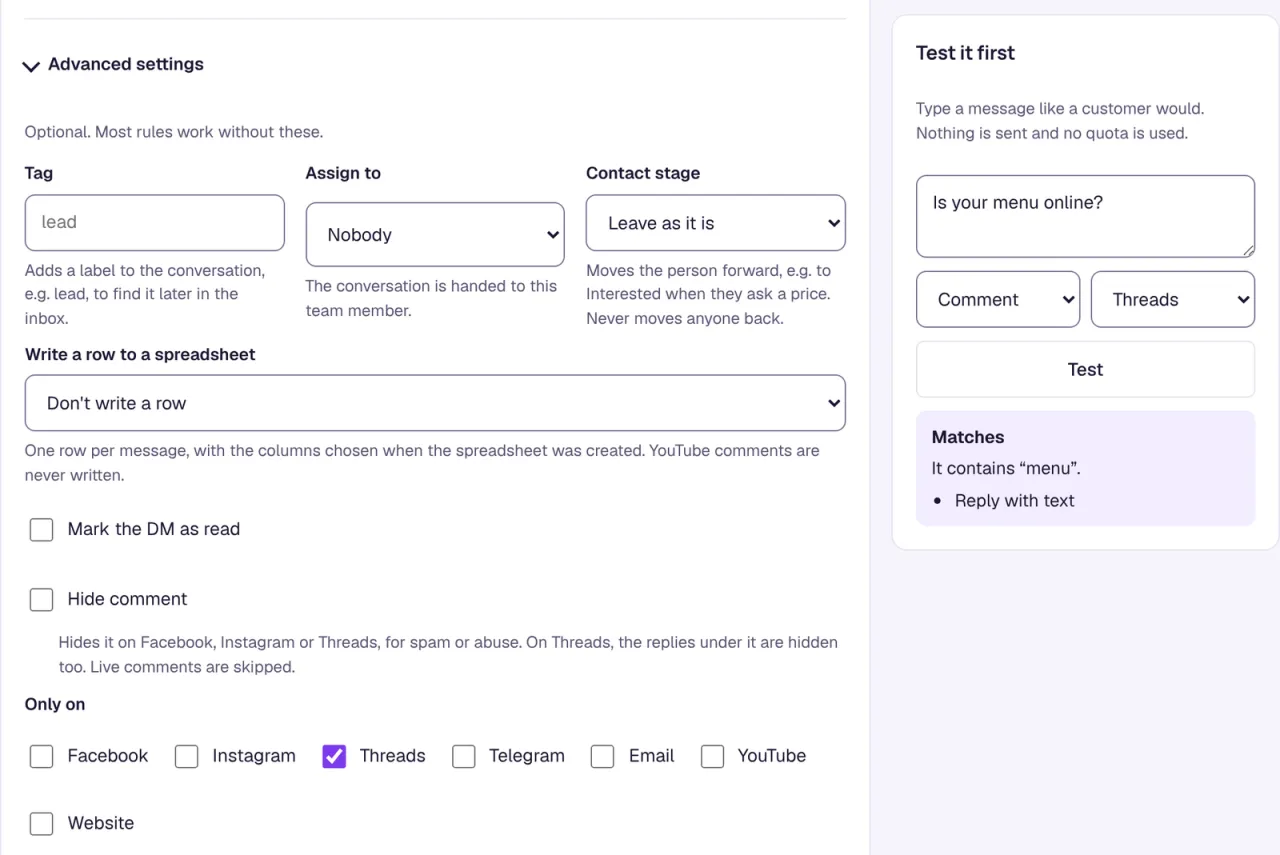
- Open Advanced settings and tick Threads under Only on, so the rule runs on Threads only. Leave it empty to use the same keyword on every platform.
- In Test it first, type a comment the way someone would on Threads and click Test. The panel says whether it matches and why. Nothing is sent and no quota is used.
- Click Save rule, with Turn on right after saving ticked.
To keep the rule to one post, use Which posts? and choose Only some posts. The list shows posts that got a comment in the last 30 days.
Limits on Threads
These come from Threads and from VivaDialog’s own safety limits:
- Public replies only. If the rule also has Also send a DM? ticked, the DM step is skipped on Threads and the automation’s History shows “Threads has no DMs.” The public reply still goes out.
- Up to 5 minutes before the reply. VivaDialog checks each Threads profile for new replies every 5 minutes.
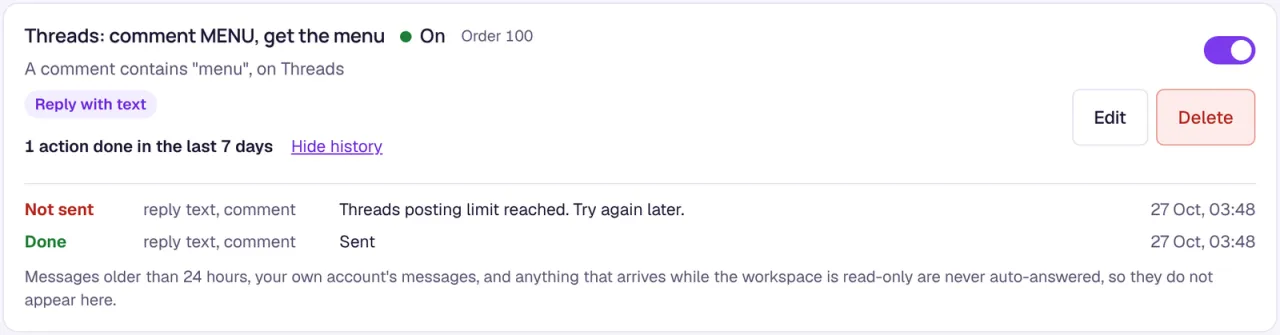
- One reply per profile every 30 seconds. VivaDialog posts at most one reply per Threads profile every 30 seconds, to stay clear of Threads’ rate limits. When several matching replies arrive in the same 5-minute check, some may not get an automatic reply; their History shows “Threads posting limit reached. Try again later.” Answer those by hand from the inbox.
- Nothing older than 24 hours gets an automatic reply.
- One automatic reply per comment, even when several rules match. The rule with the lower number under Order replies first.
- Your own replies never trigger a rule, so your profile cannot end up answering itself.
Because of the 30-second spacing, a keyword reply suits a steady trickle of comments better than a giveaway where hundreds of people comment within minutes. For a big burst, put the answer in the post itself as well, so people who do not get a reply can still find it.
Check that it works
Each rule in the list has a History link with every comment it ran on and whether the reply was sent. Threads replies also land in the Unified inbox with your Facebook and Instagram comments, so you can answer anything the rule missed.
Spam on Threads can be handled with a rule as well: hide spam comments automatically shows how. Everything Threads supports is listed in what works on Threads, and more ready-made rules are in the template gallery.