
Your team works in the same workspace: the same inbox, contacts, and automations. Owners and admins invite people under Settings > Users and security.
Invite someone
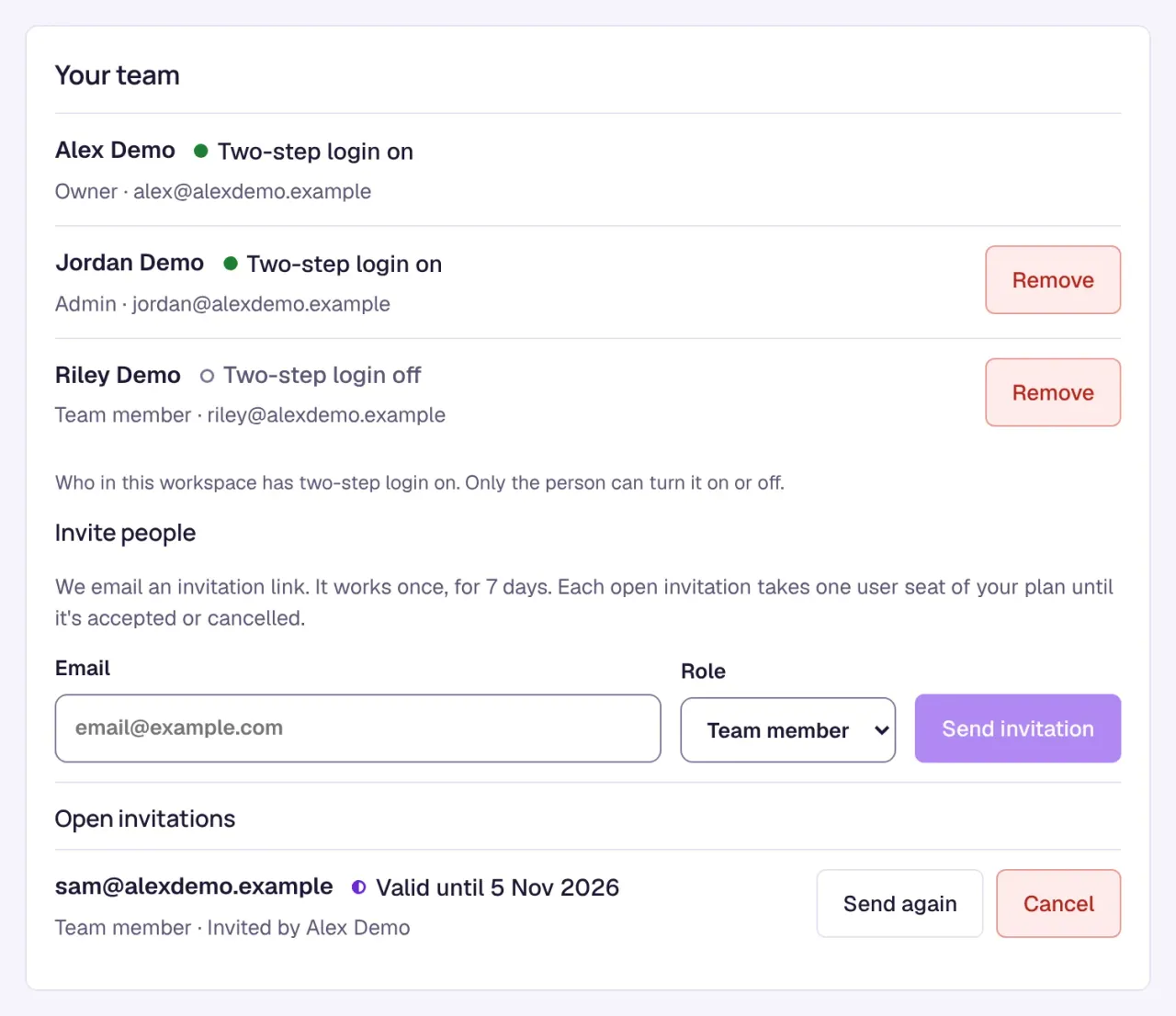
- Open Settings, go to Users and security, and find Invite people.
- Type their Email, pick a Role, and click Send invitation.
We email an invitation link. It works once, for 7 days. Each open invitation takes one user seat of your plan until it is accepted or cancelled. Under Open invitations you can Send again (the old link stops working) or Cancel an invitation. Each invitation also shows who sent it, for example “Invited by Alex Demo”.
Roles
- Owner: the person who created the workspace. The owner cannot be removed.
- Admin: manages the workspace with the owner, including automations, channels, and Settings > Developer.
- Team member: works in the inbox, sees automations in the list and can open flows, but cannot change or test them.
The owner can remove anyone except themselves. Admins can remove team members only; removing an admin needs the owner.
Remove a member
- Open Settings, go to Users and security, and find the person under Your team.
- Click Remove on their row.
- Confirm. They lose access right away.
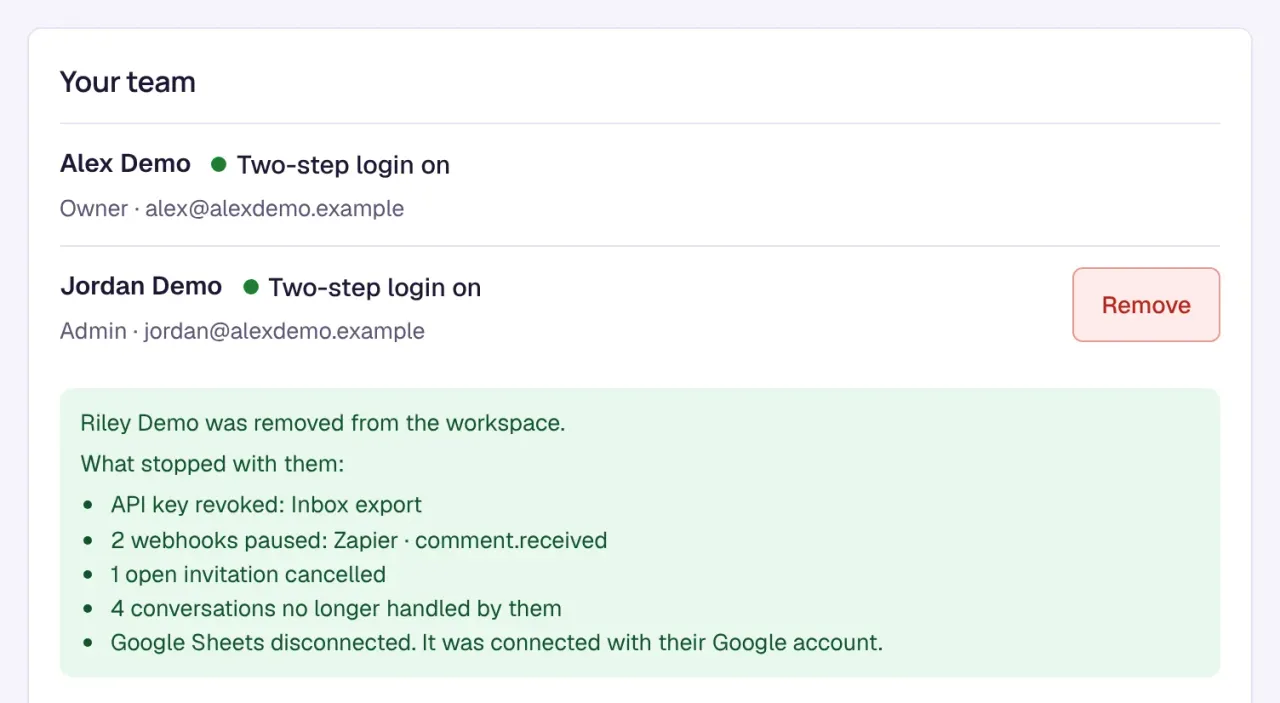
When someone is removed, what they set up with their own access stops at once:
- API keys they created are revoked, and webhooks they created are paused. Zapier connections made with their keys are paused too.
- Invitations they sent and that are still open are cancelled.
- Their Google Sheets connection, Stripe connection, and own AI key (BYOK) are removed.
- Conversations and comments assigned to them are no longer assigned.
After you remove someone, the dashboard confirms that the person was removed and lists what stopped with them, for example “API key revoked: Inbox export” or “1 open invitation cancelled”. If nothing had to stop, it says “Nothing they set up had to stop.”
What stays with the workspace: channels they connected, such as a Facebook Page, an Instagram account, or a YouTube channel, and the automations, flows, scheduled posts, notes, and files they made. The workspace keeps using them as before.
To set up a revoked key, paused webhook, or removed connection again, an owner or admin creates it again. See API keys and the Public API and outgoing webhooks.